Kawa Works
Real-Time Keyboard Builder
A browser-based 3D product configurator can match the visual quality of a native app
- Role
- Lead Developer
- Timeline
- 2 days
- Year
- 2026
Executive Summary
Built a fully interactive, WebGL-powered keyboard configurator in a compressed two-day sprint — sourcing a production GLB model, engineering a complete configurator UI and state layer, building a custom lighting system, and shipping two distinct RGB preview modes: a performant emissive shader plane and a realistic 84-point-light grid.
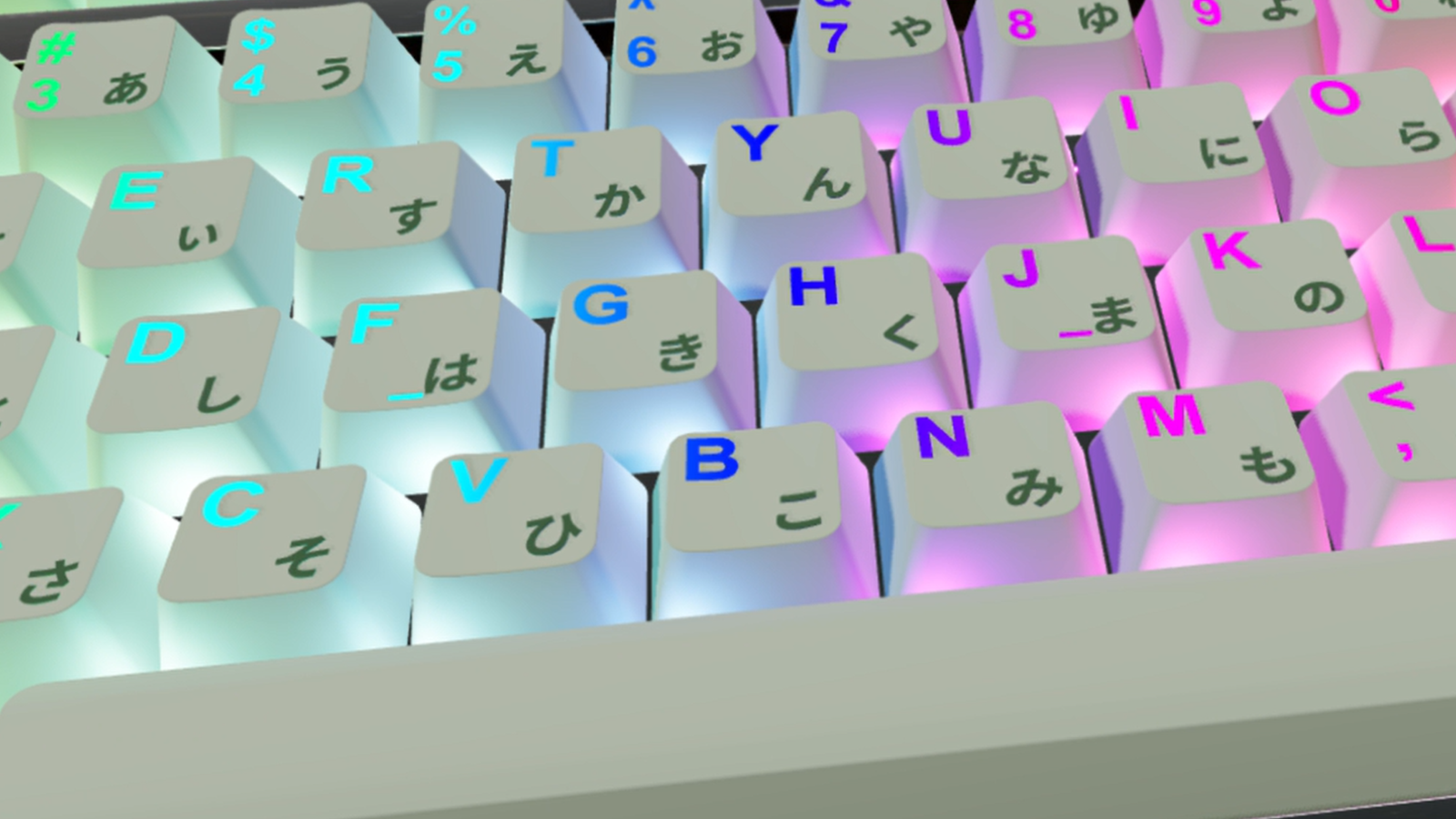
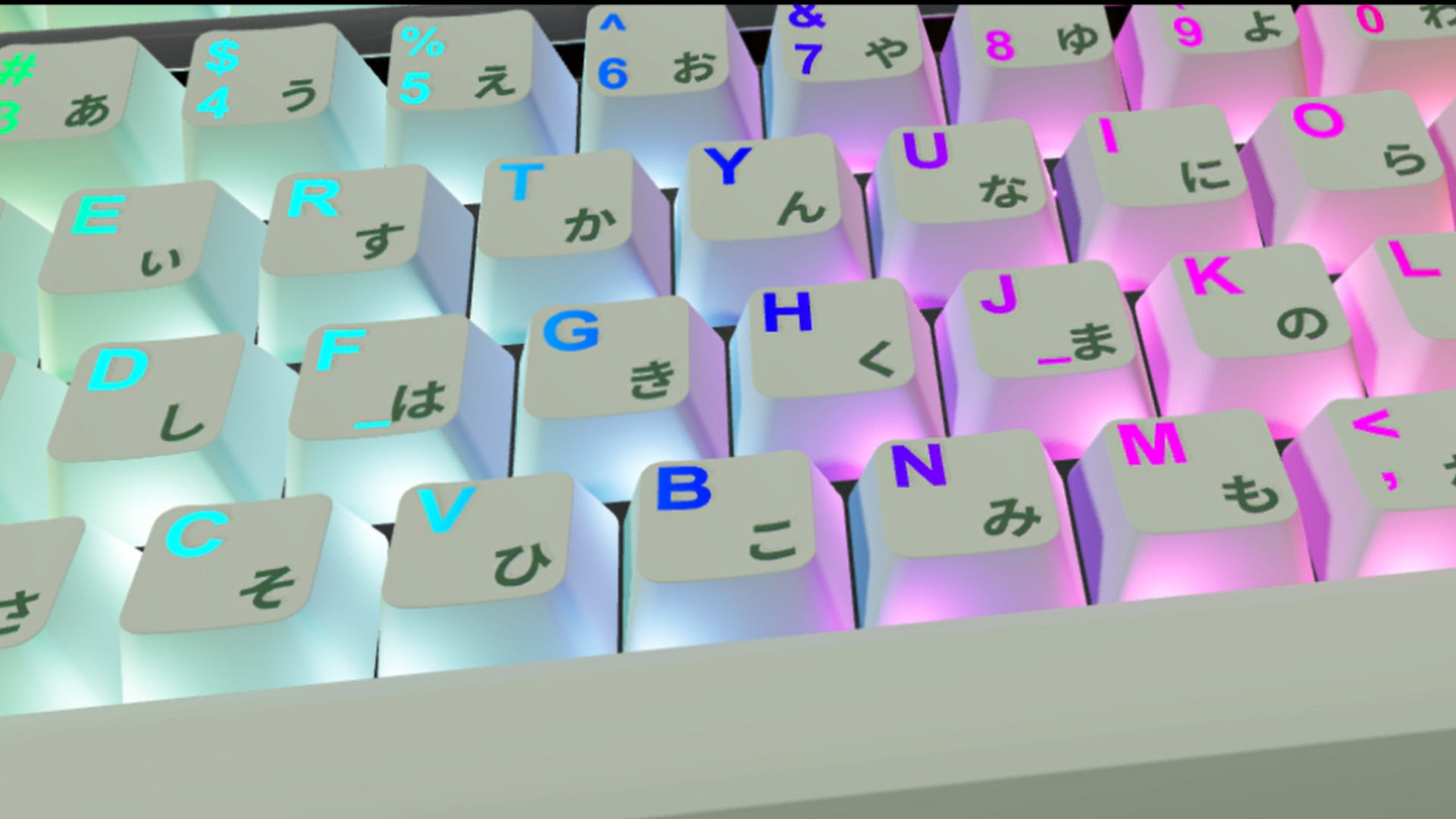
This project had a couple of fun and technical rendering challenges: isolating and swapping individual mesh materials on a multi-material GLB model in real time, applying physically-based material properties that mimic keycap PBT material and creating a shine-through RGB effect.
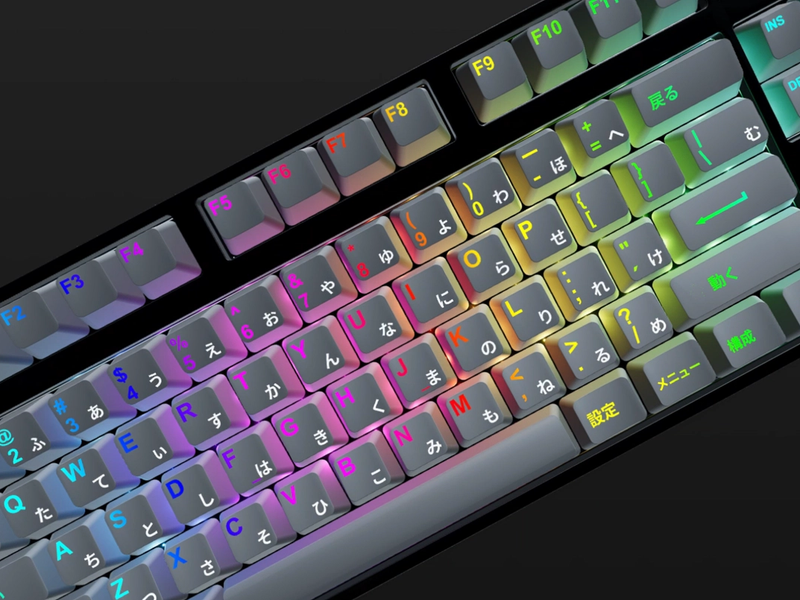
The complete product features a web embeddable configurator with more than 100 keyboard configurations with options like casing colors, PCB connection type, switches, keycaps, and accessories. The product renders in real time via a custom viewer with camera angle presets, environment switching, and a toggle between two RGB lighting modes that let users preview the keyboard's full aesthetic before committing.
Context
1. Context
1.1 Brief
As a keyboard enthusiast, I like to browse sites where you can order a keyboard custom built to your specification. Most of these sites lack a way to a preview your keyboard build. You have to scroll through a large gallery of images hoping your keyboard configuration was photographed with the keycaps you want. So I decided to build a small interactive app to showcase real-time 3D rendering in a practical use case.
This app would run live in a Next.js site and render an imported keyboard model, updating the material maps in real-time based on user’s selection.
1.2 Core Technical Problems
- →Can we find a appropriate 3D model that fit the use case?
- →Can we mimic plastic, aluminum and RGB with materials and custom GLSL shaders?
- →Will the product work well on the web and mobile?
Constraints
2. Constraints
- →Timeline: Two-day build sprint
- →Team Size: One person
- →Browser-only: WebGL delivery; no server-side 3D processing
- →Model sourcing: No time for custom 3D modeling — required a production-ready GLB with a named mesh structure compatible with per-mesh material override
- →Performance: Had to run smoothly on mid-range hardware; expensive rendering modes needed to be opt-in, not default
Strategy
3. Strategy
3.1 Phase 1 — Model Sourcing and Asset Validation
With the time crunch, I didn’t have any spare time to model a custom keyboard and key caps. Luckily I was able to find a high quality model from vysiondesign on CGTrader. The file had a good mesh with the key legends separated from the keycaps themselves, which would be perfect for our RGB use case. The model also had a good separation between the top/bottom casing and already had good UVs.
This was 90% of the way there, I just needed to isolate a single keyboard and name mesh components appropriately, the configurator would later reference these for dynamic material swapping.,
3.2 Phase 2 — Configurator State Layer
The configurator’s state — casing colors, PCB connection type, switches, keycaps, accessories — was centralized in a state management store (Zustand). Each keyboard option gets modeled as a typed option in a dedicated data file (keyboard-options.ts), keeping UI components stateless and the logic trivially extensible.
The UX was split into three steps: External (casing + keycaps), Internal (PCB + switches), and Accessories. A step indicator with visual completion state guided users through the flow. Price calculation derived from store state in real time, giving users a live running total as they built their configuration.
3.3 Phase 3 — Rendering Architecture and Studio Lighting
The 3D viewer was built with React Three Fiber around three core rendering concerns:
Studio lighting rig — Three directional lights (key, fill, rim) tuned for professional product-photography lighting. The background lights dim programmatically when the RGB mode activates, so the colored LED glow reads cleanly.
Physically-based keycap materials — Keycap body and accent materials use THREE.MeshPhysicalMaterial tuned to approximate real PBT plastic (powdery, non-glossy micro-surface).
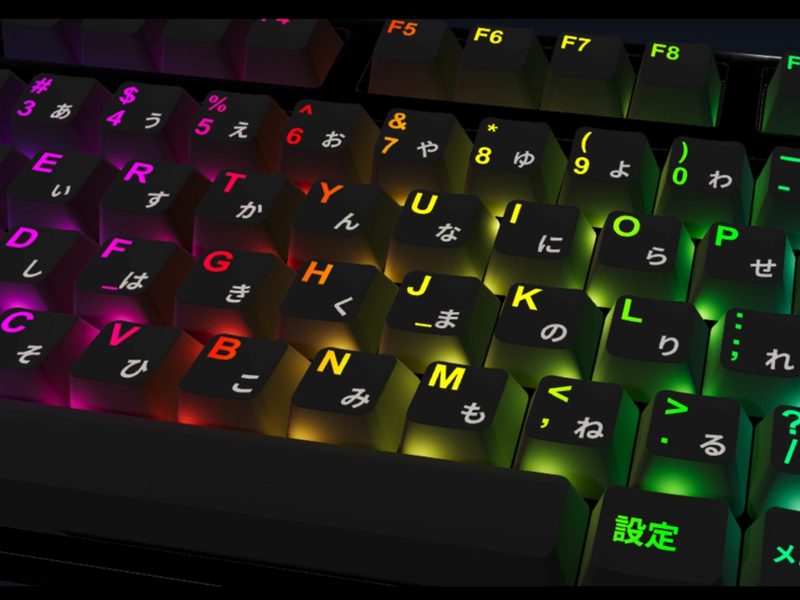
Legend GLSL shader — Keycap legends use a custom THREE.ShaderMaterial. Each letter’s hue is offset by its X position in model space, producing a horizontal rainbow sweep. The shader blends between the base color and the RGB emissive state synchronized with the rest of the lighting system.
3.4 Phase 4 — Dual-Mode RGB Lighting System
Using too many lights in a WebGL project will degrade performance and cause visual stutters when the computer is trying to catch up computing the draw cycles. For a better user experience, there are 2 RGB viewer modes:
Plane mode (performant default) — A single emissive plane positioned just below the keycap surface, rendered with the same GLSL wave shader as the legends. This produces a convincing backlight glow at near-zero GPU cost.
Point lights mode (realistic but expensive) — An 84-point-light grid (14 columns × 6 rows, matching a 75% keyboard layout key-by-key) places one Three.js point light per key. Each light’s hue animates independently, producing per-key RGB that casts physically accurate colored light on the keyboard surface. This mode is flagged in the UI with a ☢️ radiation symbol to honestly signal its GPU cost.
Both modes share the same time variable to keep legend colors, plane glow, and point lights synchronized.
3.5 Phase 5 — Viewer Controls and UX Enhancements
With the project base complete, I added a few viewer options to enhance the user experience:
- →Camera angle presets (Front, Top, Side, Angle) — revealed on hover as a stacked button panel
- →Environment preset picker — 10 HDRI environments (apartment, city, dawn, forest, lobby, night, park, studio, sunset, warehouse)
- →Background color picker — full color control for previewing against any backdrop
- →Auto-rotate toggle — gentle idle rotation to keep the viewer alive between interactions
- →OrbitControls + rotation reset — snaps model back to default orientation
- →Contact shadows — a soft shadow plane grounds the keyboard in space
To highlight the configurator’s possibilities, I incorporated looping product shots displayed above the configurator interface.
Challenges
4. Challenges
4.1 Material Mutation vs. Cloning
Three.js caches GLTF materials on load. Mutating them directly changes the cached copy, so I had to take care of managing all configurable materials and creating custom vertex shader logic for the key cap legends re-coloring.
4.2 Real-Time Lighting
The keyboard can look very different depending on the given environment map, lighting, and material setup. I listed a lot of different options to showcase the capabilities, but you may need specific selection to get a desired effect. The HDRI environment map was fighting with the RGB mode due to the neutral ambient glow of the lighter color keycaps, so I had to zero out envMapIntensity on both keycap materials when RGB is enabled and restore it when RGB is off.
4.3 Shader Synchronization
With some shader logic you can map the animation loop of multiple effects to a single time driven value to synchronize the effects.
Outcomes & Impact
5. Outcomes & Impact
5.1 Deliverables
- →Live, embeddable keyboard configurator running in a Next.js site
- →100+ unique configurations across casing colors, PCB connection, switches, keycaps, and accessories
- →Dual-mode RGB lighting system with user-controlled performance/realism toggle
- →Custom GLSL shaders for physically-accurate PBT material rendering and RGB wave effect
- →Studio-quality 3D viewer with environment, camera angle, and background controls
5.2 Technical Results
- →Built in two days w/AI tools, from model sourcing through live deployment
- →84-point-light grid synchronized via shared uniform
- →PBT keycap material tuned to real manufacturing properties
- →Environment map contribution zeroed dynamically on RGB activation — prevents HDRI wash-out of LED glow
5.3 Portfolio Value
This configurator demonstrates the full range of a creative technologist role in a single interactive piece: model sourcing judgment, GLSL shader programming, state architecture, product UX, and performance engineering. The dual RGB mode — with an explicit performance warning — shows design-level thinking about the tradeoffs being made, not just the ability to build the effect.
Lessons Learned
6. Lessons Learned
6.1 What Worked Well
- →Zustand for configurator state — flat, typed, zero boilerplate. Adding a new configurable option is a one-line data change, no component refactoring required.
- →Shared
uTimeuniform — one write drives two shader paths in perfect sync. Eliminates timing drift without any additional coordination logic. - →Phased UX flow — splitting configuration into External → Internal → Accessories reduced visual complexity without hiding any options.
- →Explicit performance tradeoff — labeling the point-light mode as expensive (with a ☢️ icon) sets expectations correctly and makes the plane mode feel like the smart choice rather than a limitation.
6.2 What I’d Do Differently
- →Add a GLTF load progress indicator —
Suspensewith a fallback works, but a progress bar would be more polished on slower connections. - →Expose per-key RGB color customization — the shader architecture supports it (each key’s hue is already addressable by X position), but it wasn’t in scope for the sprint.
- →Add screenshot / share functionality — letting users export an image of their configured keyboard would increase the piece’s utility and shareability.
6.3 Advice for Others
If you’re building a 3D product configurator for the web:
- Validate the model structure before writing any configurator logic — mesh naming conventions and UV quality define what’s possible. Bad topology at this stage costs double the time to fix later.
- Clone, never mutate, cached GLTF materials — this is a silent bug that’s easy to miss in short demos and painfully obvious in production.
- Design the performance/realism tradeoff explicitly — if you have an expensive rendering mode, surface it as a feature with honest labeling, not a hidden cost.
- Separate data from UI early — a typed options data file makes adding new configurations trivial. Encoding options directly in component state couples the UI to the data unnecessarily.
- Use a shared animation clock for shader synchronization — a single
uTimeuniform written inuseFrameis the simplest, most reliable way to keep multiple shaders visually in sync.
Technologies
Interactive
Gallery